 button the keys will be generated and the confirmation pop-up containing the newly created webhook credentials will be displayed:
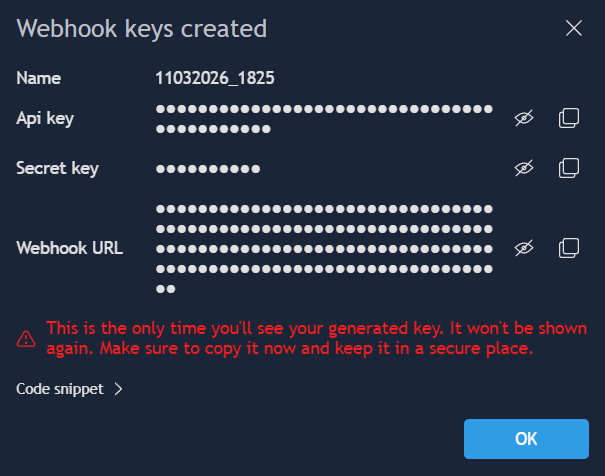
 – allows temporarily displaying or hiding the key value;\
Copy
– allows temporarily displaying or hiding the key value;\
Copy  – copies the value to the clipboard.
{% hint style="warning" %}
It’s important to note that after closing this window, the generated keys will no longer be displayed in the terminal!
{% endhint %}
### Webhook trading
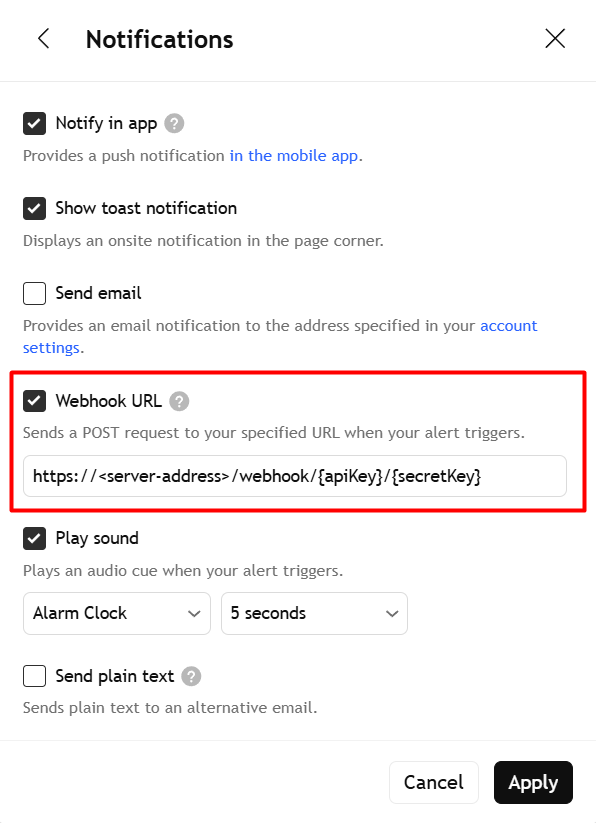
To use webhook trading, you need to configure your external system so that it sends an HTTP request to the Webhook URL mentioned in the Webhooks panel. This request must contain a JSON body describing the trading action to be performed. See more detailed instructions below.
{% hint style="warning" %}
Please note that the user must be subscribed to the Trading Webhooks product to use the webhook mechanism.
{% endhint %}
**1. Generate the Webhook keys**
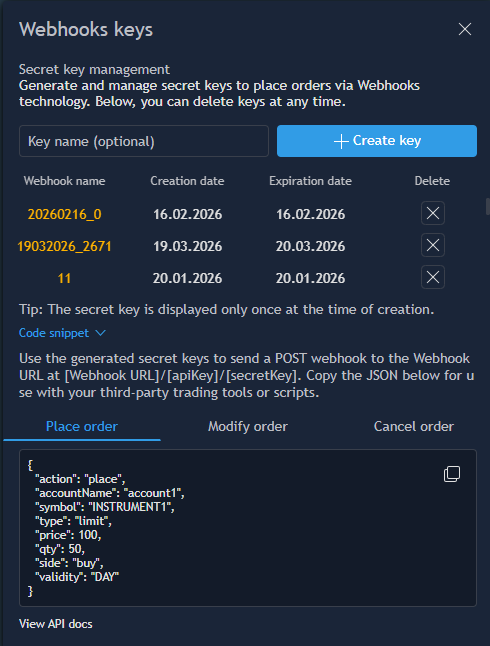
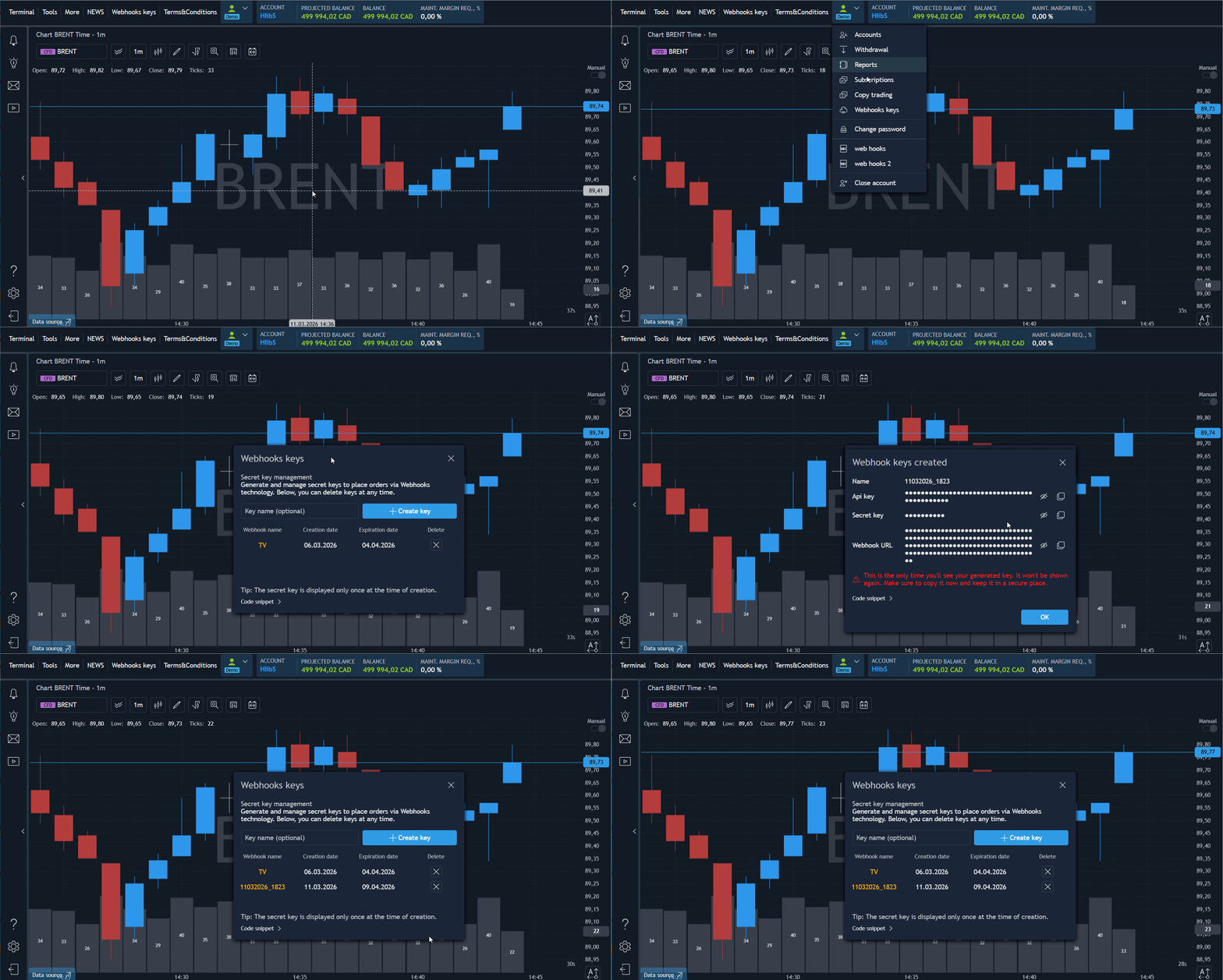
Open the “Webhooks keys” panel in the Accounts section and click “Create key” button to generate new API and secret keys:
– copies the value to the clipboard.
{% hint style="warning" %}
It’s important to note that after closing this window, the generated keys will no longer be displayed in the terminal!
{% endhint %}
### Webhook trading
To use webhook trading, you need to configure your external system so that it sends an HTTP request to the Webhook URL mentioned in the Webhooks panel. This request must contain a JSON body describing the trading action to be performed. See more detailed instructions below.
{% hint style="warning" %}
Please note that the user must be subscribed to the Trading Webhooks product to use the webhook mechanism.
{% endhint %}
**1. Generate the Webhook keys**
Open the “Webhooks keys” panel in the Accounts section and click “Create key” button to generate new API and secret keys:

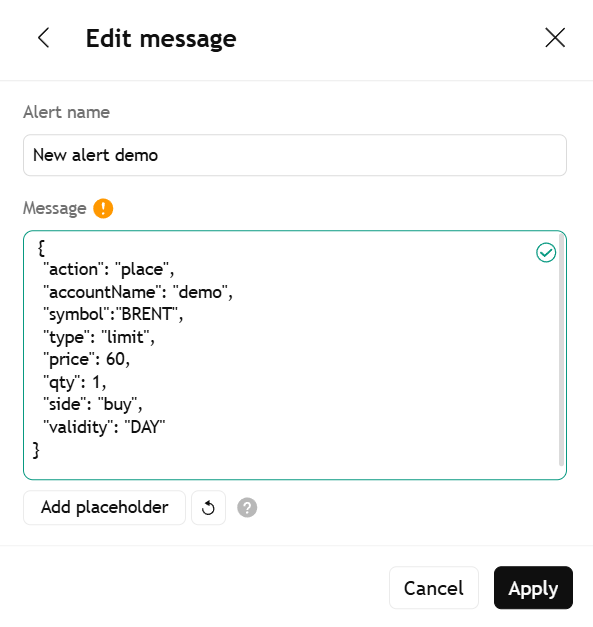
| Name | Type | Description |
|---|---|---|
action* | string/body | Action type. Must be "place". |
accountName* | string/body | Identifier of the account for which the order is submitted. |
symbol* | string/body | Instrument name (uppercase). |
symbolType | string/body | Instrument type. Possible values: CRYPTO, EQUITY, EQUITY_CFD, ETF, FIXED_INCOME, FOREX, FUTURES, FUTURES_CFD, OPTIONS, SPREADBET |
contractMonth | string/body | Final delivery date. Required for FUTURES, FUTURES_CFD, OPTIONS. |
strikePrice | number/body | Strike price. Required for OPTIONS. |
strikeType | string/body | Put or Call. Required for OPTIONS. |
isin | string/body | ISIN identifier. |
type* | string/body | Order type: Market, Stop, Limit, Stop limit, Trailing stop, Care. |
price | float/body | Price at which the order should be placed. |
stopPrice | float/body | Stop price for the order. |
qty* | float/body | Quantity of the order. |
side* | string/body | Order side: buy / sell. |
cashOrderQty | float/body | Cash quantity of the order. |
validity | string/body | Validity type (DAY, GTC, IOC, GTD, FOK, GTS). |
expireDate | integer/body | Expiration timestamp in milliseconds (used with GTD). |
stopLoss | float/body | Stop loss price. |
stopLossType | string/body | Stop loss type (absolute, offset in ticks, tr. offset, offset in %). |
takeProfit | float/body | Take profit price. |
takeProfitType | string/body | Take profit type (absolute, offset in ticks, offset in %). |
trStopOffset | float/body | Trailing stop offset. |
userComment | string/body | Additional order comment (Care orders only). |
| Name | Type | Description |
|---|---|---|
action* | string/body | Action type. Must be "modify". |
accountName* | string/body | Identifier of the account for which the order modification is submitted. |
orderId* | integer/body | Identifier of the order to be modified. |
price | float/body | New price of the order. |
stopPrice | float/body | Updated stop price for the order. |
qty | float/body | Updated quantity of the order. |
validity | string/body | Validity of the order (e.g., DAY, GTC, IOC, GTD, FOK, GTS). |
expireDate | integer/body | Expiration timestamp in milliseconds. Used only when the validity type is GTD. |
stopLoss | float/body | Updated stop loss price. |
stopLossType | string/body | Type of the stop loss (absolute, offset in ticks, tr. offset, offset in %). |
takeProfit | float/body | Updated take profit price. |
takeProfitType | string/body | Type of the take profit (absolute, offset in ticks, offset in %). |
trStopOffset | float/body | Updated trailing stop offset. |
userComment | string/body | Additional order comment (Care orders only). |
| Name | Type | Description |
|---|---|---|
action* | string/body | Action type. Must be "cancel". |
accountName* | string/body | Identifier of the account for which the order is submitted. |
orderId* | integer/body | Identifier of the order to cancel. |
