> For the complete documentation index, see [llms.txt](https://guide.traderevolution.com/project/llms.txt). Markdown versions of documentation pages are available by appending `.md` to page URLs; this page is available as [Markdown](https://guide.traderevolution.com/project/desktop-application-for-windows/windows/informative-panels/fixed-income.md).
# Fixed income
Fixed Income panel provides a focused view of Fixed income instruments (e.g., bonds). It allows exploring and filtering instruments by issuer, maturity date, coupon rate, type, sub-type, country, and fractional availability. Instruments are grouped in a broker-defined list and can be updated dynamically based on user-selected filters.
The panel can be found in the Tools -> Fixed income and has the following view:
### Toolbar
Toolbar of the panel consists of the following elements:
* Search symbol or issuer - text field for searching instruments by their Symbol or Issuer;
* Maturity date – dropdown menu for filtering instruments by their Maturity date. Available options:
* 1 year or less;
* 1–3 years;
* 3–5 years;
* 5–10 years;
* 10–20 years;
* 20+ years.
* Coupon rate – allows filtering instruments based on their coupon rate (%).\
Enter a minimum and/or maximum value to define a range:
* Type – dropdown menu to select one or more Fixed income types;
* Sub-type – dropdown menu to filter by specific sub-types of Fixed income instruments;
* Fractional – dropdown menu for selecting whether to show instruments that support fractional trading. Available options:
* All - activates both Allowed and Not allowed checkboxes;
* Allowed - shows instruments with allowed Fractional trading;
* Not allowed - shows instruments with restricted Fractional trading;
* Country – dropdown menu to select one or more countries of issuance;
* Search – applies selected filters and updates the list of instruments in the panel;
* Reset – clears all filters and returns the list to its default state.
{% hint style="info" %}
Note that each filter can be removed individually by clicking the 'X' button: 
{% endhint %}
### Columns
The table in the Fixed Income panel consists of the following columns:
* Symbol – displays the instrument’s trading symbol;
* Description – shows the full name or description of the instrument;
* Issuer – indicates the name of the entity that issued the instrument;
* Coupon rate, % – the annual coupon interest rate paid by the instrument;
* Maturity date – the date on which the instrument matures;
* Type – general classification of the instrument (e.g., Government or Corporate);
* Sub-type – additional classification for the instrument (e.g., Callable, Bullet);
* Fractional – indicates whether fractional trading is allowed for this instrument;
* Country – shows the country of the issuer.
{% hint style="info" %}
Each column in the table supports sorting. You can click on a column header to sort the list in ascending or descending order: 
{% endhint %}
### Context menu
Right-clicking on an instrument opens a context menu with the following options:
* View – shows or hides the toolbar (enabled by default);
* Order entry – opens the Order entry panel for the selected instrument;
* Chart – opens a Chart panel for the selected instrument;
* Add to watchlist – allows adding selected instrument to a watchlist;
* Symbol info – opens the Symbol info window with detailed information about the instrument;
* Export – exports the current list of instruments;
* Group by – Allows grouping instruments by the following parameters:
* Issuer;
* Maturity date;
* Type;
* Sub-type;
* Country.
* Settings – opens additional settings window for Fixed income panel.
### Settings
The Settings window is accessible via the Context menu → Settings option:
Settings window is divided into 3 main tabs: General, Columns and Coloring rows.
#### General
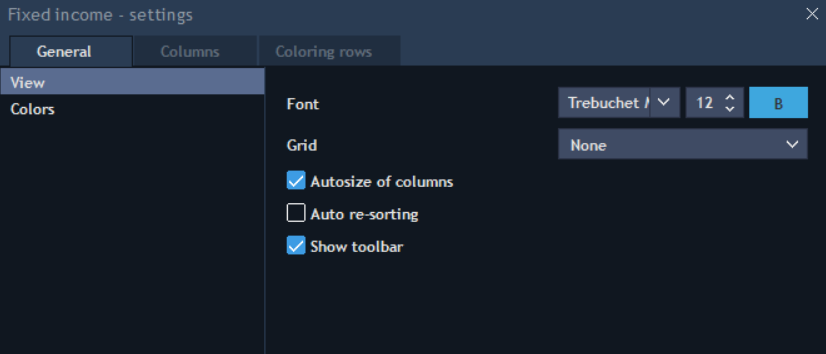
The General tab allows you to customize the appearance and behavior of the table. It consists of two sections:
**View**
This section allows you to configure the table’s font and grid behavior:
* Font – select the font family, size, and style (bold) used for displaying the table content;
* Autosize of columns – automatically adjusts column widths to fit their content;
* Auto re-sorting – if enabled, the table will re-sort automatically when new data is received;
* Show toolbar – shows or hides the panel’s toolbar with filters and search options.
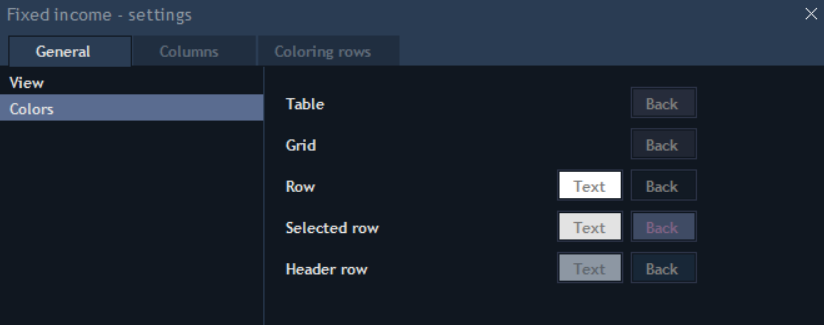
**Colors**
This section allows you to change the colors of various parts of the table:
* Table / Grid – background color of the table and grid lines;
* Row – text and background color for regular rows;
* Selected row – text and background color for the currently selected row;
* Header row – text and background color for the column headers.
#### Columns
The Columns tab allows you to manage which columns are displayed in the Fixed Income table and to customize their appearance:
#### Coloring rows
The Coloring rows tab allows you to create custom **color schemes** for highlighting specific rows in the table based on defined conditions.